

How to Connect BigQuery to Google Sheets: 3 Simple Methods
Simplify BigQuery data analysis with auto-refreshed Google Sheets reports and email distribution for seamless, efficient data communication.

.png)
Jumping between BigQuery and spreadsheets slows down reporting and decision-making. Bringing BigQuery data to Google Sheets makes reporting faster and more accessible for any team. It helps users analyze live data in a familiar format, without needing advanced SQL skills or constant manual exports.

In this guide, you’ll learn three simple ways to connect BigQuery to Google Sheets. Whether you're looking for automated reports, quick exports, or collaborative dashboards, these methods will help you streamline data workflows and make smarter, faster decisions.
Note: This article on BigQuery Sheets Connectors was originally published in August 2019 and has been fully updated in April 2025 to ensure all solutions are accurate and up to date.
Benefits of Transferring Data from BigQuery to Google Sheets
Connecting BigQuery to Google Sheets enables business users to work with complex corporate data from Google Cloud Platform right inside spreadsheets, where decisions are made. Teams can pull, manipulate, and analyze data without needing advanced SQL skills.
Here are a few advantages of using BigQuery to Google Sheets:
- Seamless Access: Work with BigQuery data directly in Google Sheets for faster analysis.
- Real-Time Updates: Keep reports fresh with automatic data syncs from BigQuery.
- Collaborative Analysis: Share insights and reports easily across teams.
- Simplified Reporting: Build and view reports without complex SQL queries.
- Visual Exploration: Use charts and pivots to spot trends and share insights clearly.
💡 If you want to do the reverse of this exact method, get a complete walkthrough in our article How To Connect Google Sheets to BigQuery: 3 Ways, where we break down step-by-step methods to simplify reporting with BigQuery Sheets Connector.
BigQuery to Google Sheets Integration: 3 Ways
There are several methods available for replicating data from Google BigQuery into a Google Sheets spreadsheet.
To directly access your BigQuery data in Google Sheets using tools like OWOX, the Save Query Results option, Explore with Sheets, or Connected Sheets, which also supports automated updates.
To connect manually, go to the Data menu in Google Sheets and select Connect to BigQuery.
For more flexibility and advanced features, consider using reliable data integration tools. You can also use Google Apps Script, but it's better suited for developers than everyday Google Sheets users.
Let’s look at the most popular ways to link BigQuery to Google Sheets together.
Method 1: Automatically Connect BigQuery to Google Sheets with OWOX BigQuery Data Marts
If you’re looking for a repetitive or ad-hoc way to create automated reports using BigQuery data in Google Sheets, consider using a fully automated tool by OWOX. Let’s explore the process step-by-step:
Step 1: Install OWOX BigQuery Data Marts
Add OWOX BigQuery Data Marts from the Google Workspace Marketplace to your Sheets. Simply type in BigQuery and just select the first one:

Step 2: Create your report
1. Create a new table or open an existing Spreadsheet.
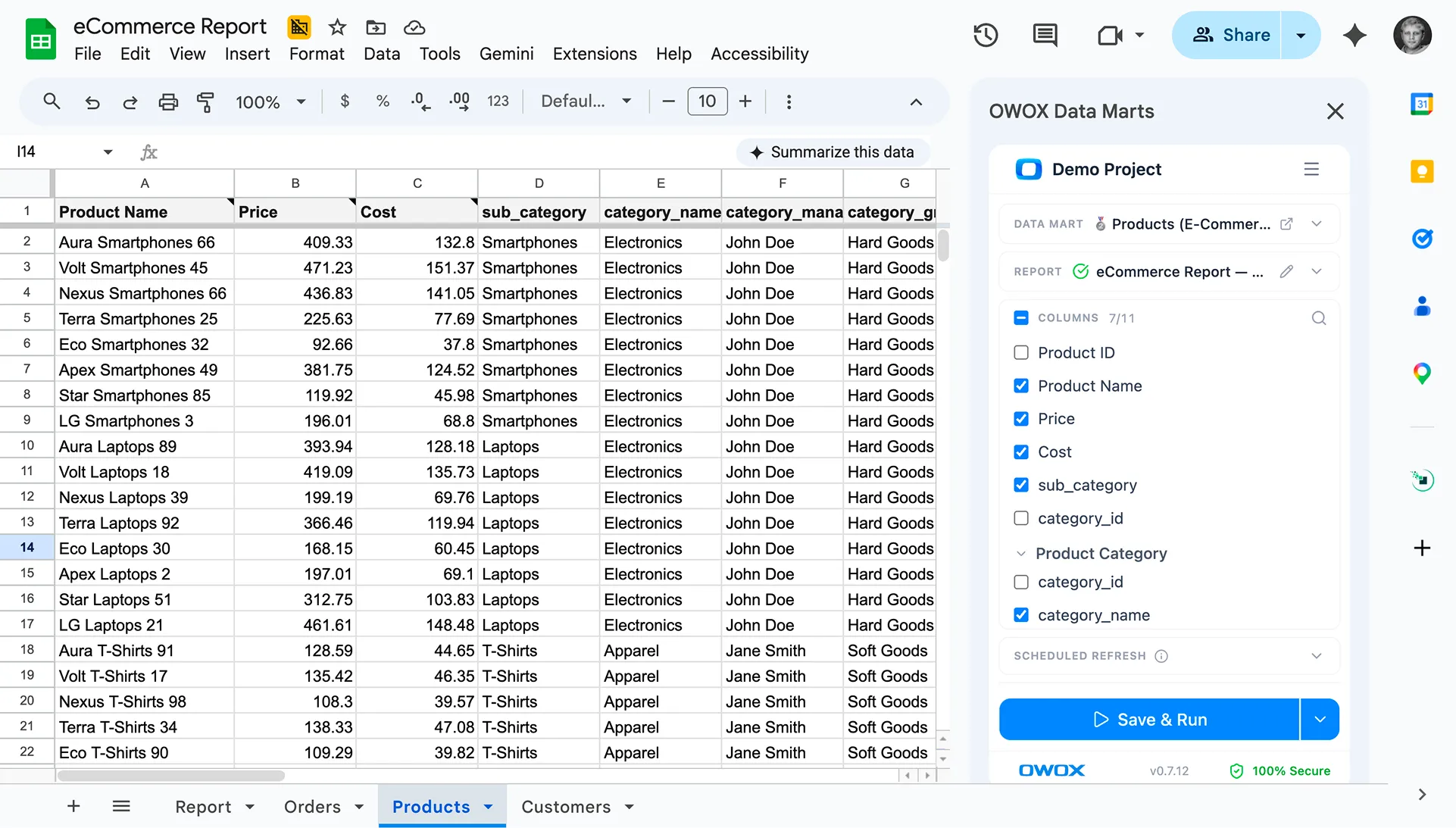
2. Go to ‘Extensions' and select ‘OWOX BigQuery Data Marts' — ‘Add a new report':

3. Next, in the right sidebar, specify the ‘Google BigQuery Project’ you want to run your reports from to simply connect BigQuery.
Note: Please, ensure you have a Google Cloud project with billing enabled to access BigQuery datasets and tables.
4. Now, let's add a SQL Query. If you want to create a new query just click on ‘Data Mart’ -> then ‘+ Add new data mart...'.

Note: If you or any of your team members have already loaded the SQL query for your report, you can just select it from the drop-down menu.
We’ve created this Data Marts Library (A collection of Querries) to avoid having a data professional to build the same query twice for different team members or departments.
If you want to edit an existing query, simply click ‘Edit’ and adjust the code.
If you need help crafting your query or editing an existing one, you can use our free OWOX SQL Copilot for BigQuery that allows to review, edit, or modify any existing query, perform complex JOINs, and validate within the chapGPT window.
This smart AI SQL copilot also has a direct integration with BigQuery to fetch the data schema, find relationships between tables within your database, and finally, craft the query with YOUR unique context.
5. Add your SQL query, give it a name, and click 'Save & Run'.
I'll use one of the public datasets with GA4 data.

There you have it!
The data is then processed in BigQuery, and the query results, a holistic view of that is automatically imported into Sheets to a new sheet, which is renamed automatically to the data mart title:

Step 3: Share data mart with your team
If you want to make your data mart used by your less technical team members, or if you simply don't want to share BigQuery credentials, you can allow anyone run, customize & schedule reports (but not editing SQL) on your behalf using your shared access to the specific datamart.
To share access to the data mart click the 'pencil' icon to edit the data mart, go to the 'Share' tab, enter email addresses of your colleagues and provide them with the delegated access to run reports on their own. It's 100% Secure.

Note: You can always withdraw your permission at any time.
Step 4: Customize the Report to Fit your Needs
1. FILTER data without editing SQL code:
OWOX doesn't have a 100,000 rows limit in connected sheets; however, there are still some Google Sheets restrictions, for example, a 10M cell limit.
Plus, when the spreadsheet becomes ‘heavy', it's more complicated to build pivots, charts on top of your report, and analyze your data.
So it's time to add filters and specify how many rows we want to retrieve.
For example, let's say we want to retrieve only the: Medium CONTAINS organic.
2. Apply LIMITs:
There is also a LIMIT functionality that allows you to specify the number of rows (starting from the first) that you want to receive in the Sheets table. Let's ‘LIMIT' our data to 10 rows.
3. SORT data automatically:
Plus, let's sort our data by Total_users Descending.

When we click on ‘RUN', we'll get the filtered data. Just look how simple it is for a spreadsheet user who doesn't know SQL to filter the data in the spreadsheet.

Note: Filters can be added to fields of the following types: String, Integer/Float, Boolean, Date, DateTime, Time.
Step 5: Set automated report refreshes
With this OWOX BigQuery Data Marts, you can enable automated refreshes for query results to avoid manually running updates when you or another stakeholder needs data.
To set updates on a schedule, just use the sidebar section ‘Scheduled Refresh' or open the report, use the Extension sidebar or select OWOX BigQuery Data Marts — ‘Scheduled Refresh' from the ‘Extensions' tab:

Next, select a desired update frequency. Specify how often you want to update the data in your report (which time of the day, what days of the week, and which weeks of the month) and set it just once to run the query, and all of your reports will be saved automatically.
To receive an email alert when the report is updated, select the appropriate box.
Save the settings.

Your report will then be automatically updated at the specified time and frequency!
Step 6: Automatically generate pivots & charts
Finally, you can visualize the query results - report: build awesome pivot tables, graphs, charts, share with your teammates and make decisions based on those data.
To visualize your data, head up to 'Visualize now' button, select the metrics & dimensions to include, and get the beautiful and actionable dashboard with everything you need to start exploring data.

Learn more about our FREE Pivots & Charts generator in this article.
Step 7: Customize Deeper [Optional]
But what if you want to filter the data by the fields that are not retrieved using this query, but still give a spreadsheet user the power to handle this?
In our example, as shown in the screenshot below, the parameters are event_name, start_date, and end_date. To apply dynamic parameters, just click 'Save & Run'. The OWOX extension enables this by allowing users to define query parameters for dynamic report generation.

Benefits of OWOX BigQuery Reports Extension
- Run Cohort analysis in Google Sheets. You can calculate both the revenue and the cost of attracting each user cohort and optimize your budget accordingly.
- Segment users by behavioral characteristics and send each segment unique advertising offers.
Method 2: Save Query Results in BigQuery
This is the simplest method- but also the most limited.
Run your SQL query in the BigQuery interface, then click ‘Save Results’ and choose ‘Google Sheets’ to manually export the output.
It’s useful for quick, one-time Google Sheets reports, but lacks automation or scheduling.

In a few moments, a newly created Google Sheets with the name ‘results-YYYYMMDDD-#######‘ document with your transfer data will be created and you can open it in a new tab.

This option allows you to export query results into Google Sheets document of up to 10 MB.
The main drawback here is that there is no automated updates here. You can query data only once. So, every time you’ll need to update the data or refresh, you’ll have to manually export your query results again and again, flooding your Google Drive with newly created spreadsheets. So, let’s take a look at a better way to export BigQuery to Google Sheets.
Method 3: Use Connected Sheets to Connect BigQuery to Google Sheets
Google’s Connected Sheets, a former BigQuery data connector from Sheets, is designed for BigQuery users to download BigQuery tables and queries into Google Sheets.
It is a built-in, native solution for exploring data in Google Sheets. In addition, Connected Sheets supports data refresh on a schedule (every week, every day, or every hour), which means you no longer need to manually export data from BigQuery, but you’ll pay for processing every time data is loaded.
Let’s see how it works: Users can select public datasets during the connection process to interact with data and create charts and pivot tables within Google Sheets.
Important: To use the BigQuery Connected Sheets connector, you need a supported Google Workspace plan. As of 2024, it's only available for Enterprise Standard/Plus, Education Standard/Plus, and Enterprise Essentials users. Cloud Audit Logs record access to data in BigQuery, ensuring transparency and security.
Export BigQuery tables to Google Sheets with Connected Sheets
In order to retrieve an entire BigQuery table into Connected Sheets:
- Log in to your BigQuery account,
- navigate to the table you want to work with,
- Right-click on the table and select ‘Open in new tab’,
- click on the table name, then ‘Export’ → ‘Explore with Sheets’.

Or, you can find your table in the left Explore bar, click three dots next to the table name, and select ‘Open in' → ‘Connected Sheets'

In just a few moments, a Connected Sheets doc will open, and you’ll see the message ‘Success. Your data is connected.’ Connected Sheets lets you run BigQuery queries directly in Sheets and extract the results for further analysis.

Click ‘Get started' and you'll see your GBQ table data in Connected Sheets.

Note: Your data is not imported into a Connected Sheets document. It’s a preview of your tabular data in a special interface.
You can manipulate that data in different ways, filter, pivot, build charts, apply functions. If you need to export data into sheets, click the ‘Extract' button and select how many rows you need to load.
Select ‘new' or ‘existing sheet', then confirm the extraction by clicking ‘Apply'
Here is how the extracted data looks like:

On the right side of the screen, you will see the ‘Extract editor', which allows you to select columns, filter and sort your data, as well as change the row limit with fixed positions from 10 to 100,000 rows, or select your number. Each filter refreshes a query sent to BigQuery using your selected project.
Note: You won't be able to extract more than 100,000 rows. Also, when using Connected Sheets, pivot tables are limited to a maximum of 50,000 rows.
Export SQL Queries from BigQuery to Sheets with Connected Sheets
If you need to export a SQL query containing data from multiple tables with JOINs or UNIONs from BigQuery to Google Sheets, then the BigQuery Sheets Connector can do this for you as well.
Run your query, then click ‘Explore data’ → ‘Explore with Sheets’.

You already know what would happen next, a new Google Sheets Table with your data and a Connected Sheets window.
Automate Refresh Schedule for BigQuery Export to Google Sheets
After data is extracted, you can work with the query result, create pivots, and charts, change the number of rows, filter data, and automate the refresh of your data.
BigQuery not only enables descriptive analytics but also emphasizes its capability for predictive analytics, allowing users to create machine learning models and make batch predictions directly within the data warehouse:
- Click on the Schedule refresh option.
- Customize Repeat frequency and Start date and time.
- Click Save to apply the changes.
Now, your BigQuery export to Google Sheets is automated, and it will refresh according to the specified schedule.
Note: With connected sheets, you will be able to update your reports weekly, daily or hourly. So no flexibility here.
Connected Sheets Limitations
While Connected Sheets, as a native Google Sheets connecto,r offers a lot of advantages, there are notable challenges that users might encounter when using it:
- Row Limit: You can extract up to 100,000 rows at a time. Larger datasets may need to be split across multiple sheets.
- Account Requirement: Only available to users with Business, Enterprise, or Education Plus Google Workspace plans.
- Limited Refresh Options: You can refresh data hourly, daily, or weekly—but not more frequently, which may lead to higher processing costs.
- Access Permissions: Stakeholders must have access to the connected BigQuery project to interact with the data in Sheets—without it, features like pivots and charts won’t work.
So, you may want to consider a solution without those limitations like connecting BigQuery to Google Sheets using OWOX BigQuery Data Marts.
What’s the Best Way to Connect BigQuery to Google Sheets?
The ideal method depends on your specific needs. If you only need to export data occasionally and the dataset changes each time, a manual one-time export from BigQuery to Google Sheets is quick and requires no setup.
For scheduled or repeated exports, Connected Sheets is a convenient option—but it does come with limitations, such as row restrictions, slower performance with large datasets, and limited automation capabilities.
If your workflows extend beyond BigQuery and involve multiple data sources or more complex logic, a manual or semi-automated setup may quickly become inefficient. In such cases, tools like OWOX BigQuery Data Marts offer a more flexible and scalable solution, enabling seamless automation, multi-source integration, and reliable scheduling without hitting typical platform limits.
Bonus: How to Email Reports using Google App Script
To avoid missing key changes in your KPIs, you can configure report emails using Google Apps Script. For advanced automation, the BigQuery API can also be used within Apps Script to integrate queries directly.
Step #1: Prepare or create a Google Sheet and retreive the data you want to include in your report.
Step #2: Access the Apps Script editor within Google Sheets by navigating to ‘Extensions’ –> ‘Apps Script’. Give your project a name in the Apps Script editor.

Step #3: Develop a script function to retrieve data from the sheet.
Format the data for email, either as HTML or plain text. Use MailApp or GmailApp to create a function for sending emails.

Step #4: Execute the function in the script editor to ensure it runs smoothly. Check the recipient's email to confirm the delivery and formatting are correct.
Step #5: Set up a trigger in the Apps Script editor for automatic execution at specific intervals like daily, weekly, etc.
Step #6: Deploy the script for regular use and keep an eye out for any errors or issues that may arise during its operation.
Done! Now your spreadsheet reports will come to your email, you won’t miss anything, and you’ll be able to make changes to your marketing activities in time.
Frequently asked questions
.png)





"AI by its nature will hallucinate. You need guardrails so you can trust your data."
"We had six or seven different channels and no single source of truth. It was almost impossible"
"We regained time. And time is the one resource that never comes back."